Screenshots show the Italian app interface; controls are explained in the language of this guide.
After a trade closes, it's easy to remember the result and forget why you made each decision. Why did you enter early? What made you take a partial? Was the setup invalidated, or did you react to a pullback? In TotalTrade's History you can review the trade, its timeline and its result, and attach a comment and screenshots. It works for both backtest sessions and Journal trades.
1. Find the trade in History
- Backtest: from the Sessions list, open the session menu, select Analytics, then History.
- Journal: open the account's track record and select the History tab.
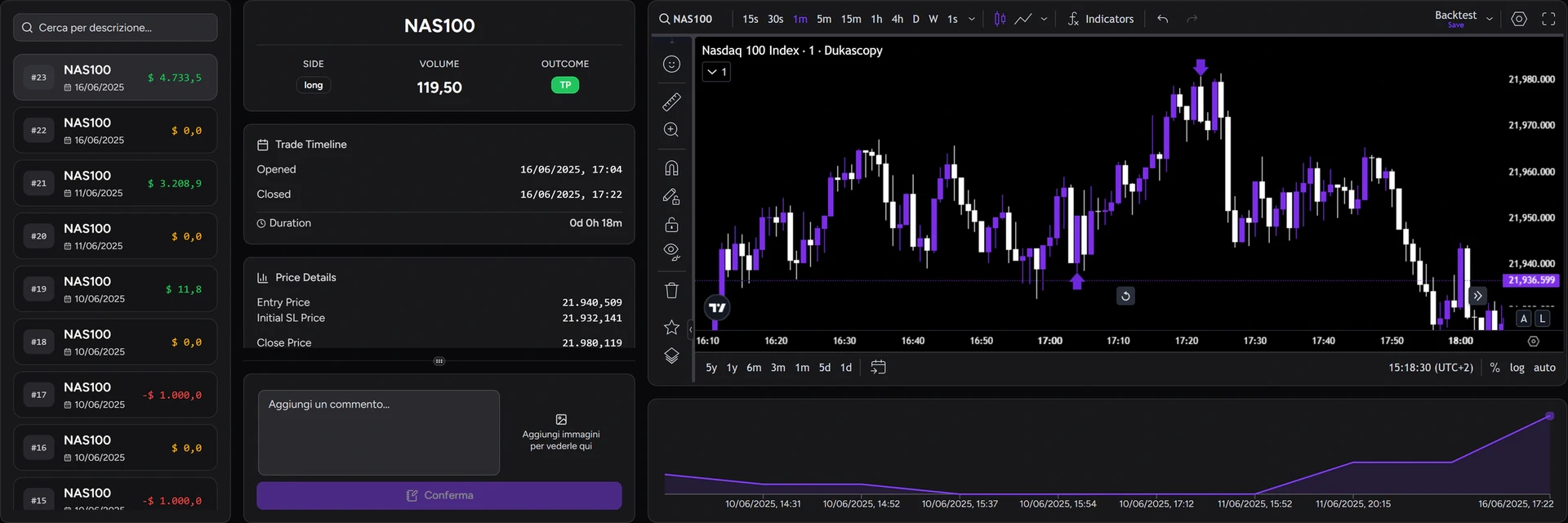
The trade list is on the left. Identify the trade by asset, Side, Volume and Outcome, then click it to open the details. Search by description finds trades from the text you wrote. A description that names the setup ("retest of previous high") is much easier to find than a note about the result.
2. Follow the entry, partials and exit
Trade Timeline shows the sequence of events: Opened, Closed, Duration and any partials with time and percentage.
- In a backtest, Price Details shows the recorded levels: entry, initial stop and exits.
- In the Journal, the details depend on the data received with the history. For missing levels, such as the initial stop, rely on the notes and screenshots saved during the trade.
On the chart you can see the situation at entry and how price behaved while you managed the trade. An early exit may have been a good read of the market or a reaction to a move that didn't threaten the trade; to tell which, you need to know what you were watching at the time. Making a decision mid-trade isn't a mistake in itself. The review is about what you based it on.
3. Check the result of each exit
Financial Summary shows realized result, commissions, net result, partials and other available costs. Read it alongside the timeline when you exited in stages.
For example: you close half the position at +1R and the other half at entry. The result is +0.5R gross; with $100 of initial risk, that's $50 before costs. The final break-even exit doesn't erase the profit already banked.
Total Risk Reward relates the result to the trade's risk, while the cash amounts show the trade's weight on the account. A large result can come from a good move, a larger size, or both. Looking at R and cash together tells you which.
4. Save a comment and images
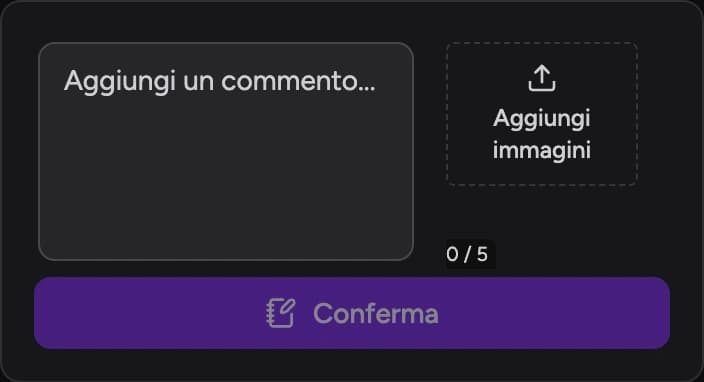
Write in Add a comment, attach your images and click Confirm.
Journal image limits depend on your plan: no images on Free, 2 per trade on Basic, and up to 5 on Pro and Ultra. The screenshot shows the limit for the plan used in this tutorial.
A good note is a few lines long and describes decisions, not outcomes:
"Long entry on the retest of the previous high. Closed half when price slipped back below the level, the rest at the pullback low."
Add what you were seeing and what you want to check. Two screenshots are almost always enough: one at entry and one when you changed your management. Before sharing them, remove any account details you don't want visible.
5. Compare decisions across trades
Reviews become more valuable when you compare similar trades. Search by description for entries on a retest, or exits on the first pullback, and look at them together.
If you often close before the target, ask whether you were spotting a deteriorating setup or stepping in as soon as open profit shrank. Look at both winners and losers: the same exit may have reduced a loss in one session and cut a good move short in another.
Then pick the right tool:
- to practice discretionary management, go back to replay, where you decide as price moves;
- to compare a fixed rule, such as a partial at +1R, use the Backtest Simulator on the session's trades.
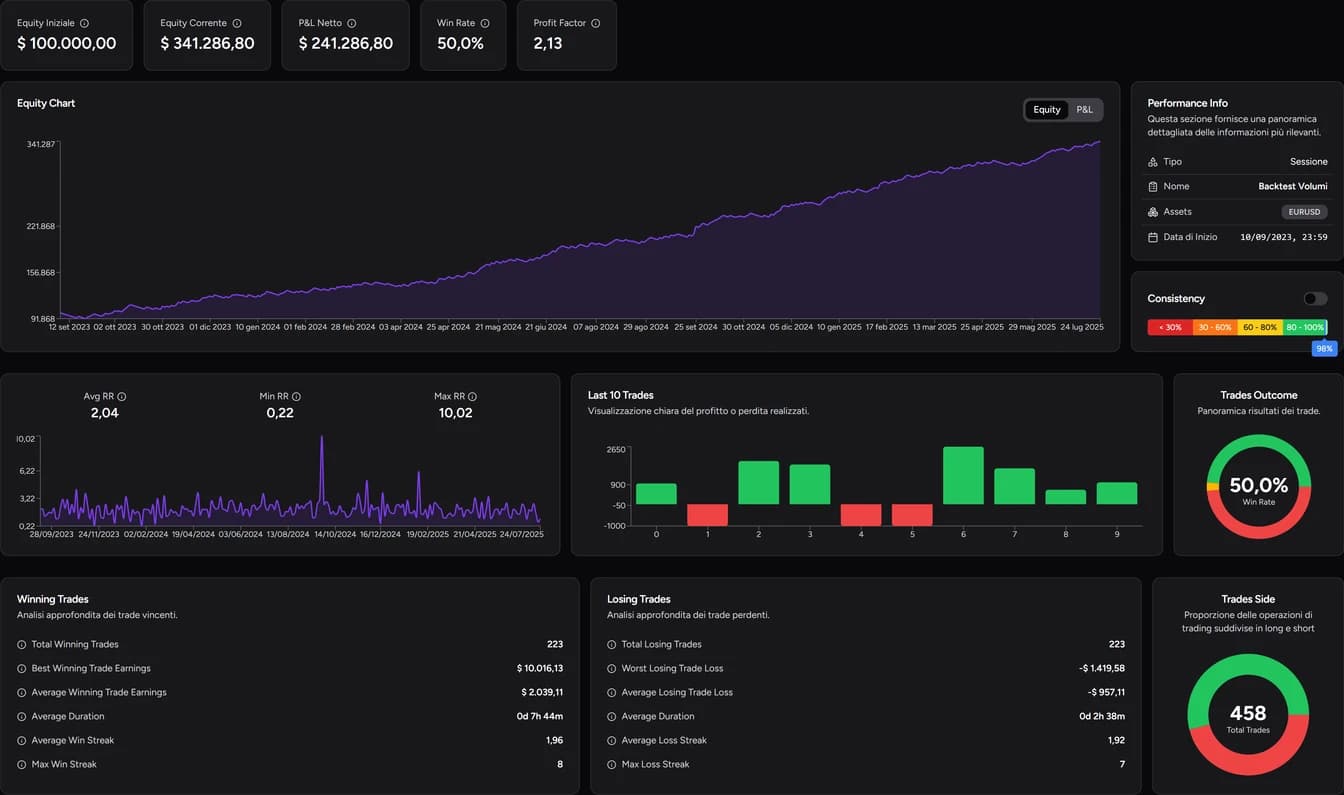
To decide which trades to review first, start with the statistics. Our guide to analyzing your trading journal shows how to find them.
FAQ
Can I see the initial stop in the Journal?
It depends on the data in the imported history. If the level isn't available, the screenshot or comment saved during the trade keeps the reference.
How do I find a trade I've already commented on?
Use Search by description in History. Including the setup name in the description makes it easy to find months later.
Should I write the note during the trade or afterwards?
Write the reason for entry immediately, before you know the outcome. Add the evaluation ("what I'd do again") after the trade closes, with a clear head.
For information and education only, not financial advice. Leveraged trading carries a high risk of loss.